Event Reminder with Local Time
A Power Automate tutorial by Peter Kalmström
 Sometimes
you want to get a reminder when a contract has to be re-negotiated,
an important event needs to be remembered or a subscription
needs to be renewed. All such reminders can be automated
through Microsoft Power Automate. SharePoint Online has
some built-in flows that can send e-mail reminders, but
for more advanced remiders you need a custom flow. Sometimes
you want to get a reminder when a contract has to be re-negotiated,
an important event needs to be remembered or a subscription
needs to be renewed. All such reminders can be automated
through Microsoft Power Automate. SharePoint Online has
some built-in flows that can send e-mail reminders, but
for more advanced remiders you need a custom flow.
In the demo below, Peter Kalmström, CEO and Systems
Designer of kalmstrom.com Business Solutions, shows how
a flow can send e-mail reminders to events created in a
different time zone. The e-mail has an event link and the
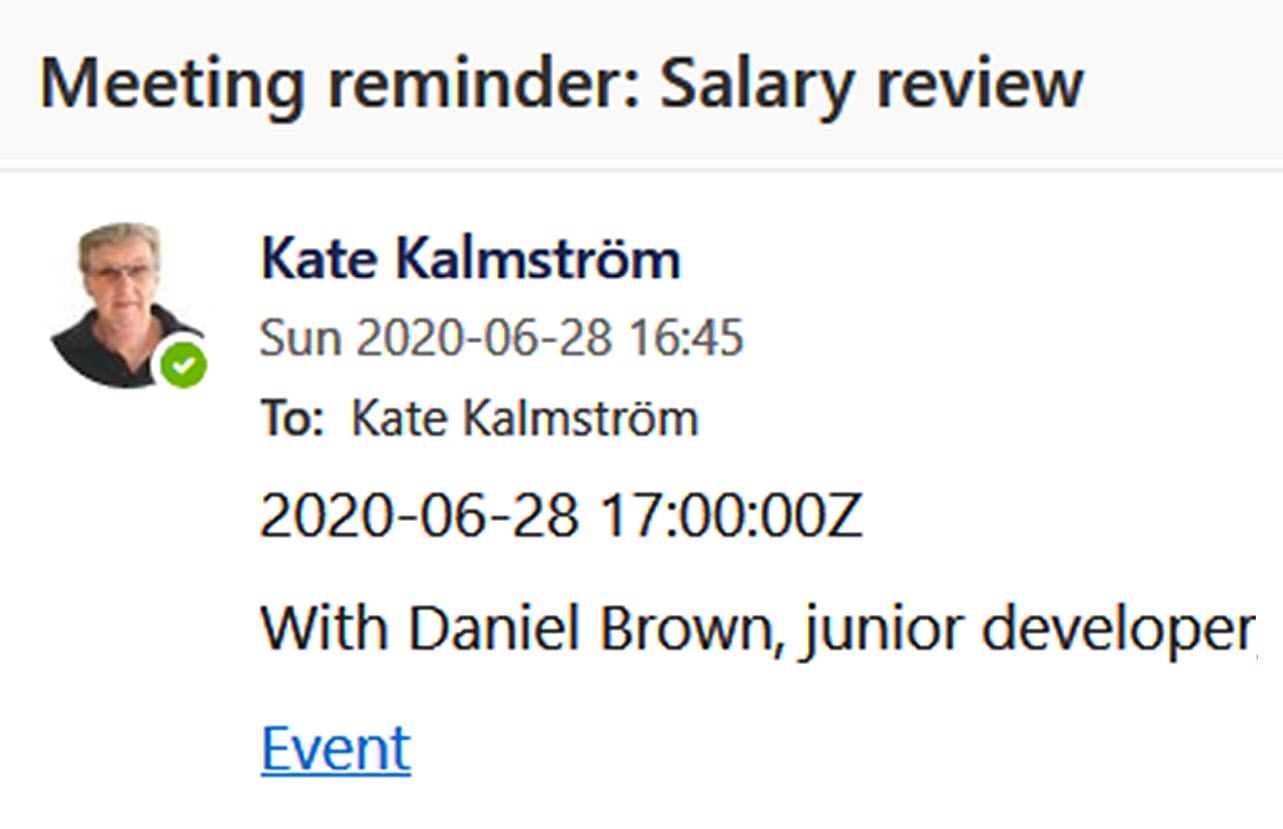
event time expressed in the local time.
The flow runs automatically every morning, but it should
only send an e-mail if there is a meeting today. Power Automate
was new when the demo was created and the limitation to
today's events were created with a condition before the
e-mail sending.
In the book SharePoint Flows
from Scratch we have a more efficient solution: to filter
the action that fetches events from the calendar. This makes
the flow quicker if there are many events to run through,
so the steps below are from the book, not describing the
demo.
Another difference between the demo and the
book is that the book uses the new Design page and the modern
calendar, the one you get when you create a Calendar list
in a modern site. It has the internal and UI name "Start"
for the time when the meeting starts. In the 'classic calendar,
which is shown in the demo, the internal name is "EventDate"
and the UI name "Start Time".
In Power Automate,
times are automatically converted to Coordinated Universal
Time (UTC). Therefore, Peter needs to set the local time
in two places in the flow, for the calendar and for Outlook.
Steps to create a Reminder flow with local time:
- Start with a 'Scheduled from blank' flow.
- Set the frequency and time for when the flow should
run.
- Set the time zone in the trigger
- Add the action 'SharePoint, Get items', which will
get items from the SharePoint calendar. The items to
be fetched are limited in the Filter query field:
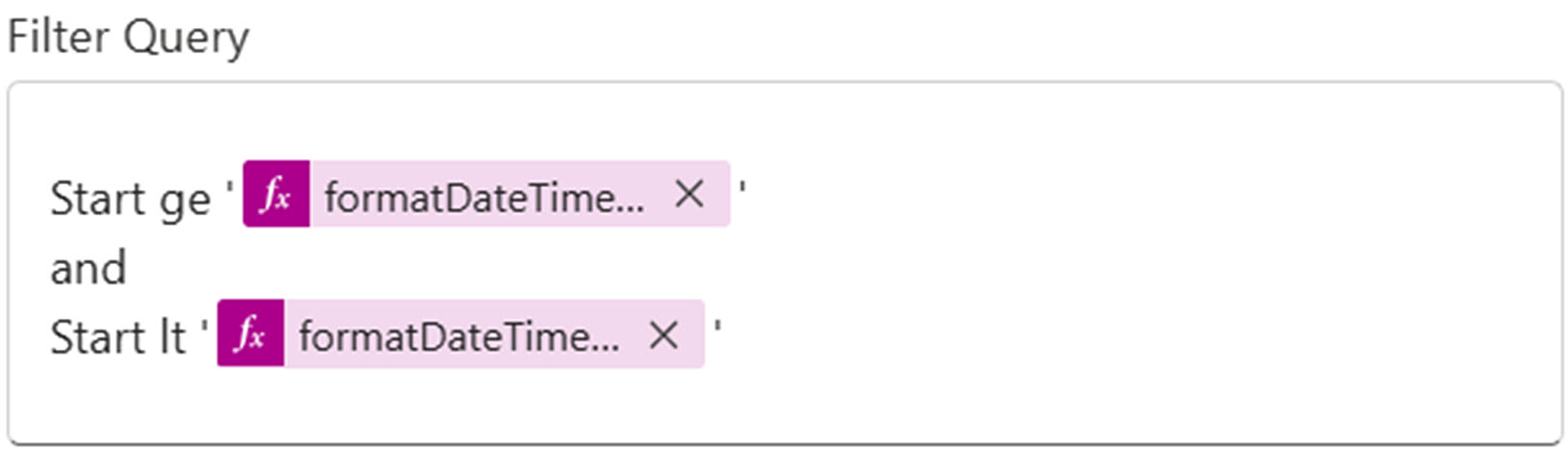
- Type Start and the ge operator and, within single
quotes, add the expression formatDateTime(startOfDay(utcNow()),
'yyyy-MM-ddTHH:mm:ssZ').
- Type and.
- Type Start and the lt operator and add, within
single quotes, the expression formatDateTime(addDays(startOfDay(utcNow()),1),
'yyyy-MM-ddTHH:mm:ssZ').
(Use 'EventDate' instead of 'Start' for the classic calendar.)
- Add and configure the action 'Date Time – Convert
time zone'. It will be automatically encapsulated in
a 'For each' action with the output 'body/value'.
- At 'Base time', add the dynamic content Start.
- At 'Source time zone', keep the default UTC.
- At 'Destination time zone', select the local
time you want to be displayed in the reminder e-mail.
- At 'Time unit, select how you want to have the
time mentioned in the e-mail.
- Add and configure the action 'Send an email (V2)'.
- In the 'To' field, enter the user(s) who will
get a reminder e-mail when the condition is true.
- For the e-mail subject, type some general text
and add the dynamic content 'Title'.
- Insert the e-mail body text. You can make it
dynamic by using the available parameters of the
flow.
|