Get Live Survey Results into SharePoint
 SharePoint
Online lists give a possibility to create Forms surveys
directly from the list and see the answers as they come
in, as new items in the list. But these surveys can only
be shared within the organization. They cannot be used when
you want to have input from customers or other persons outside
your organization, or when you use SharePoint On-premises. SharePoint
Online lists give a possibility to create Forms surveys
directly from the list and see the answers as they come
in, as new items in the list. But these surveys can only
be shared within the organization. They cannot be used when
you want to have input from customers or other persons outside
your organization, or when you use SharePoint On-premises.
When you create a Forms survey in the Forms site, however,
it can be shared to anyone without authentication. But these
surveys do not add the answers to SharePoint! The incoming
answers can only be synchronized with Excel.
 The
kalmstrom.com team has created multiple solutions that takes
care of the last step between Excel and SharePoint. The
problem is to transfer the answers as they come in,
but that can be done with a PowerShell script. The
kalmstrom.com team has created multiple solutions that takes
care of the last step between Excel and SharePoint. The
problem is to transfer the answers as they come in,
but that can be done with a PowerShell script.
Get the data to SharePoint
 One
problem with Forms surveys is that the results are saved
in Forms and in an Excel table instead of in a SharePoint
list. When the survey is finished, you can of course use
the different "Export to SharePoint" techniques that I have
described in several Tips articles, but to use the submitted
responses as they come in and build flows on top of the
results is extremely tricky. One
problem with Forms surveys is that the results are saved
in Forms and in an Excel table instead of in a SharePoint
list. When the survey is finished, you can of course use
the different "Export to SharePoint" techniques that I have
described in several Tips articles, but to use the submitted
responses as they come in and build flows on top of the
results is extremely tricky.
Solve problems with PowerShell
 SharePoint
and Microsoft 365 comes with a plethora of features that
we and our customers make use of every day. Sometimes you
need a bit of glue to put it all together, and these days
PowerShell is usually our answer. SharePoint
and Microsoft 365 comes with a plethora of features that
we and our customers make use of every day. Sometimes you
need a bit of glue to put it all together, and these days
PowerShell is usually our answer.
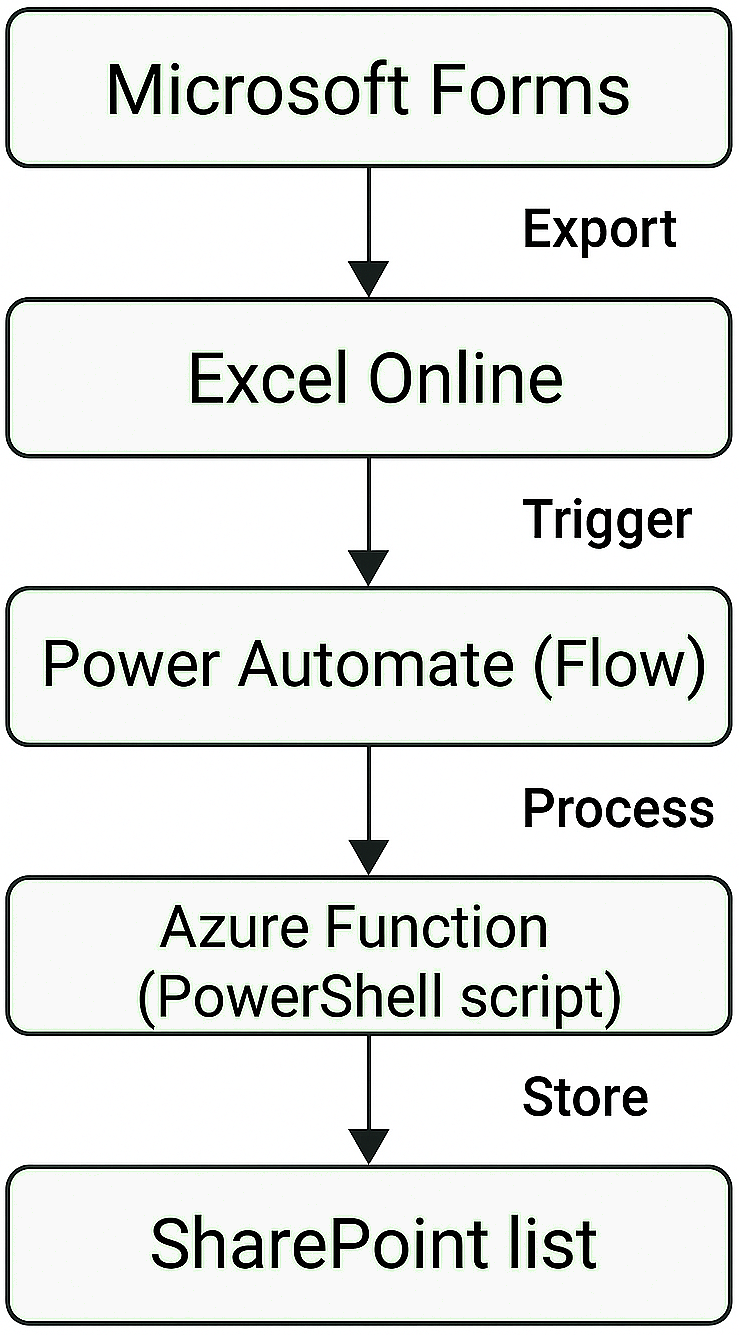
In this case we solved the transfer problem by using an
Azure Function that runs a PowerShell script:
-
 Created a Power Automate flow that runs on each file
modification in the SharePoint document library where
the Excel file with the survey results is stored.
Created a Power Automate flow that runs on each file
modification in the SharePoint document library where
the Excel file with the survey results is stored.
- The flow in turn calls to an Azure Function with
an HTTP GET request, essentially notifying the function
that there is work to do.
-
 The
Azure Function PowerShell script connects to the SharePoint
document library, finds the new information in the Excel
table and adds corresponding new rows to a SharePoint
list. The
Azure Function PowerShell script connects to the SharePoint
document library, finds the new information in the Excel
table and adds corresponding new rows to a SharePoint
list.
- Our customer can now continue building flows based
on what happens in the SharePoint list.
We are very happy with this technique and are already using
similar steps to solve other business needs. Essentially
it allows us to run a PowerShell script based on a trigger
in SharePoint. That an Azure Function can be run on a free
shared infrastructure is also helpful, of course.
Combining the power of SharePoint with Azure like this,
opens up a world of possibilities. This is only the beginning!
Peter Kalmström
|