NativeWebView – A Full HTML User Interface for PowerShell 7
A tutorial by Peter Kalmström
When
a script needs a form, a picker or a progress view, PowerShell has little to offer. WinForms and WPF only work on
Windows and need a lot of code. With the free kalmstrom.com module NativeWebView you write the screen in HTML,
and it opens as a native window drawn by the web engine that is already part of the system – WebView2 on
Windows and WebKitGTK on Linux. macOS support is experimental.
The page and the script talk to each other while the window is open. There is no web server to set up and no
WinForms or WPF code.
In the demo below Peter Kalmström, CEO and Systems Designer of kalmstrom.com Business Solutions, installs
NativeWebView from the PowerShell Gallery, opens a page with one line of PowerShell and runs a live dashboard that
talks back to the script.
Everything HTML can do – now in your scripts
PowerShell has always been strong at doing the work and weak at showing it. With NativeWebView the user interface is
a web page, so a script gets the whole toolbox that web designers use every day:
Any layout: CSS grid and flexbox, cards, tabs, side panels and dashboards that resize with the window.
Real forms: text fields, drop-downs, check boxes, date and colour pickers, sliders and built-in validation. The values come back to the script.
Tables: sort, filter and select rows in the page, and send the chosen rows back to the script.
Charts and graphics: bar charts, gauges and diagrams with inline SVG, or drawings on a canvas.
Motion: CSS animations and transitions run smoothly.
Live two-way updates: the script pushes progress or new data into the page while it works, and the page sends button clicks and choices back.
Your own look: brand colours, fonts, icons and themes, all with plain CSS.
Everything you already know about HTML, CSS and JavaScript works, including pages you have generated with an AI
assistant. For security the page runs under a strict policy: CSS and JavaScript go inline in the page, and images
as data: URLs or inline SVG, so nothing is loaded from the internet.
How it works
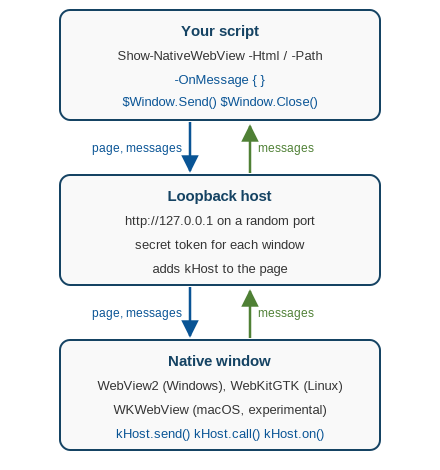
The page is served from your own computer on 127.0.0.1, on a random port and with a secret token for
each window, so it only accepts connections from your own computer. The window itself is the system's own web view,
started as a separate process.
Examples
The module comes with ten complete example scripts in its examples folder: hello, a form that returns
its values, two-way messages, a picker, a progress view, a page from a file, a live animated dashboard,
kHost.call answers, a multi-step wizard and the window options. It is a good idea to start from the
example closest to what your script needs.
An error inside the -OnMessage block closes the window and is reported as an ordinary PowerShell error,
so you can wrap the call in try/catch.
More info
Features demo – answers from the script, dialogs that return values and window options.


 When
a script needs a form, a picker or a progress view, PowerShell has little to offer. WinForms and WPF only work on
Windows and need a lot of code. With the free kalmstrom.com module NativeWebView you write the screen in HTML,
and it opens as a native window drawn by the web engine that is already part of the system – WebView2 on
Windows and WebKitGTK on Linux. macOS support is experimental.